Welcome to Elderfield Troubleshooting Guide
Every fix on this page comes from the developer's own pinned posts or his replies in the Steam forums after the 1.0 release, not from guesswork. Start with the symptom you actually have, in the order listed.
If the game will not start at all, the developer's own checklist is: run game.exe directly from the install folder, try it as administrator, make sure nw.js is not still running in Task Manager, and update your graphics drivers. If it starts but runs badly, the usual cause is the game picking your integrated GPU — see force dedicated GPU. If your controller is dead, it is almost always Steam Input — see controller not working.
Before anything else: back up your save folder. Several fixes below involve deleting or replacing files, and the save lives inside the game's install directory rather than in your Documents. The save file guide shows the exact path and a thirty-second backup routine.
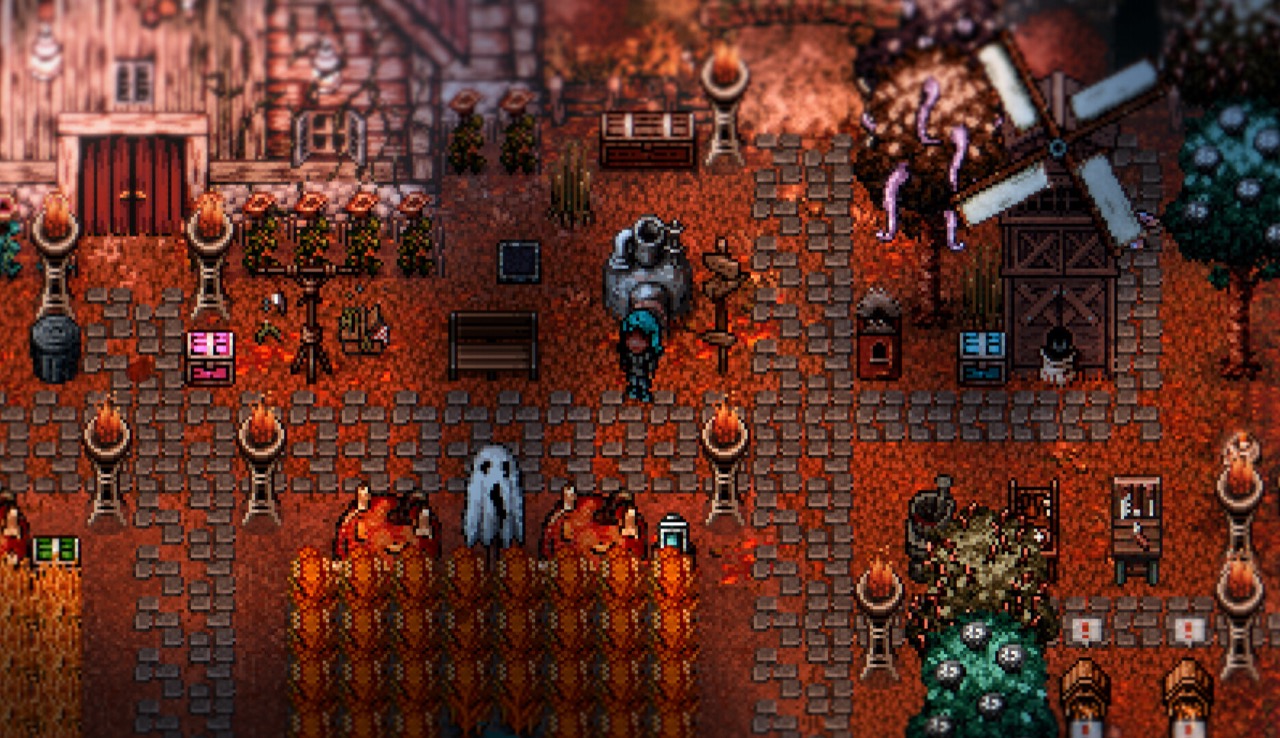
FIG. 01 — What a healthy session looks like, so you can tell a freeze from a slow load. Official store screenshot.
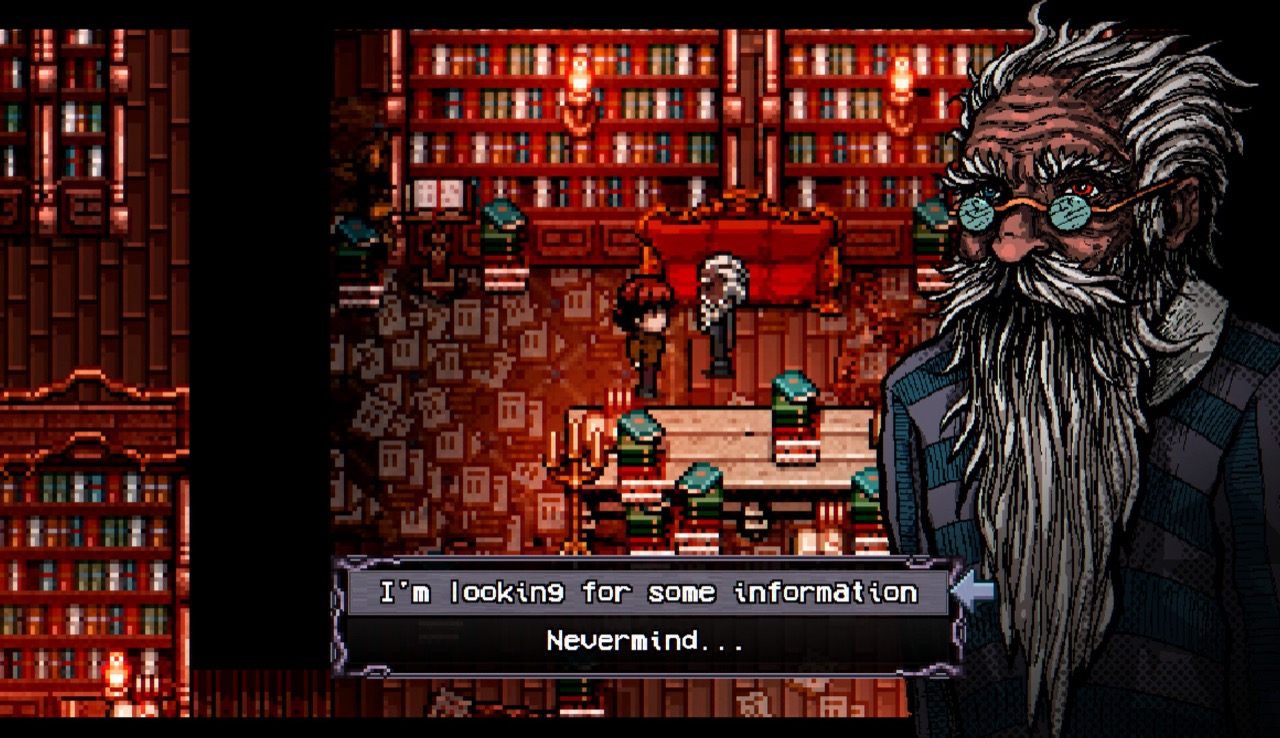
FIG. 02 — Busy night scenes are where Deck and low-end machines struggle most. Official store screenshot.
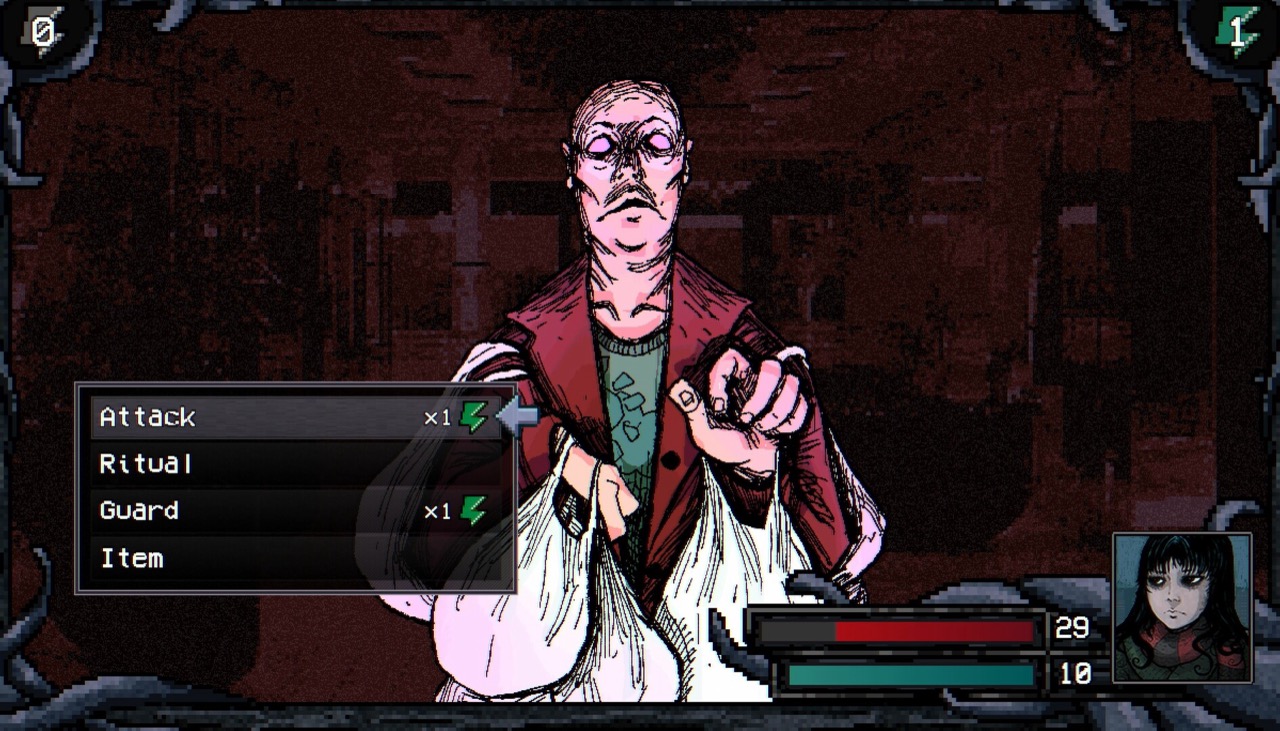
FIG. 03 — If the game exits before ever drawing a scene like this, work the launch checklist first. Official store screenshot.
The Game Won't Launch
This is the most reported problem in the Steam forums. The symptom people describe is pressing Play, Steam briefly showing the game as running, and then the button flipping back with no window ever appearing. The developer pinned a checklist for exactly this case, and it is worth working through in order rather than jumping to reinstalling.
- Run the game directly. Open the game's install directory and launch
game.exeby hand. This separates "the game is broken" from "Steam is not handing it off correctly". - Try running it as administrator. A permissions block on the install folder produces the same silent no-window behaviour.
- Check Task Manager for a stuck
nw.jsprocess. The game runs on NW.js, and a leftover process from a previous crash will block a new launch. End it and try again. - Update your graphics drivers. Old drivers are a recurring cause of an instant exit on start-up.
- Move the game folder to your desktop and run it from there. This rules out install paths with unusual characters or restrictive folder permissions.
- Restart the machine, then reinstall the game. These are the last two steps in the developer's list, in that order.
- If you are carrying an old Patreon alpha save, remove the
savefolder. The save-fixing routine can fail on alpha-era data and block start-up. Back the folder up first — see the save guide.
Steps 6 and 7 of the list above are destructive to your progress if you skip the backup. Copy the whole save folder somewhere outside the game directory first.
FIG. 02 — A crash or bad frame rate is easier to diagnose when you know what the game should look like. Official store screenshot.
Launch Fails and You Have Citrix Installed
Citrix Workspace is the single strangest confirmed cause on record. Players traced their launch failure to Citrix installing DLLs that try to inject into the game process. The fix reported by those players, and collected into the developer's post, is to uninstall Citrix Workspace and restart the machine. If you cannot remove Citrix because you need it for work, the same reports point at clearing leftover Citrix DLL remnants as the alternative.
This one is worth checking early if you have ever had Citrix on the machine. It is not an obvious suspect and it is invisible in the game's own logs.
AppData Fix for Launch Failures
The game stores NW.js user data outside the install folder. The developer's own wording is to search %appdata% on your system and back up, then delete, a folder called Welcome to Elderfield or anything similar such as WelcometoElderfield. He also notes that deleting the user data of other RPG Maker games you have played in the past can help.
That last point is the interesting one: this is a shared-runtime problem rather than something unique to this game, which is why an unrelated old RPG Maker title can affect your launch.
Back the folder up rather than deleting it outright. If the fix does not work you can put it back and you have lost nothing but time.
Note that this is not where your saves live. The %appdata% folder is runtime data; saves are in the install folder. They are two different locations and deleting the wrong one costs you progress.
NW.js Runtime Replacement
The game runs on NW.js, and the bundled runtime can misbehave on some Windows configurations. The fix recorded in the developer's launch-issues post is to download the current Windows x64 build of NW.js from nwjs.io, copy the files from inside the zip into the game directory, overwriting what is there, and then launch nw.exe instead of game.exe.
Players who used this method report that it worked where everything else failed — but also that Steam achievements stopped registering afterwards. That is a real trade-off, not a rumour: if you care about the 51-achievement list, treat this as a last resort and revert it once you have the game running another way.
Copy the original NW.js files aside before overwriting. Reverting is only easy if you kept them.
Black Screen and Freezes
A black screen with the game still running is reported most often on Steam Deck, and it is a performance symptom rather than a crash — one report describes the device drawing 12–15 W with the game frozen and nothing on screen.
There is no developer-confirmed fix for the black screen. Players have tried Chromium launch flags such as --disable-gpu and --disable-gpu --disable-gpu-compositing with mixed and unverified results. We are listing those as attempts, not as a fix, because we have no confirmation that they work.
If you get a black screen on desktop rather than Deck, work through the launch checklist first — the same causes show up as a hang rather than an exit on some systems.
Force the Game to Use Your Dedicated GPU
This is the fix for the most common performance complaint, and the developer wrote a pinned post about it. On a machine with both an integrated GPU and a dedicated one, the game may be defaulting to the integrated chip, which produces low frame rates and stutter.
The developer's instruction is to open package.json in the game folder in any text editor and change --in-process-gpu to --force_high_performance_gpu. He notes the side effect plainly: this will disable the Steam Overlay, but it lets the game actually use your GPU.
An earlier reply in a different thread described adding --force_high_performance_gpu to the end of the launch argument list rather than replacing an existing entry. The two versions disagree, and the pinned post is the later, revised one, so follow that.
The developer has said he intends to build this into a future update so nobody has to edit the file by hand. Until that ships, this is the manual route.
package.json sits in the game's root folder, next to game.exe — not inside the save folder. The developer refers to it as package.js in one reply and package.json in the pinned post; the file on disk is package.json.
Controller Not Working or Prompts Showing Keyboard Keys
If your controller does nothing, or the game shows you keyboard and mouse prompts while you are holding a gamepad, the developer has confirmed the cause: Steam Input.
His explanation is that if you are using a keyboard/mouse gamepad template, the game receives keystrokes rather than gamepad button inputs. In that state there is technically no gamepad for the game to read, which is also why re-binding appears to do nothing.
The fix, in his words: if you are not on Steam Deck, simply disable Steam Input, because the game has native controller support without it. Steam lists the game as having full controller support, including DualShock and DualSense pads.
One thing not to waste time on: the menus show input-agnostic prompts such as "Sprint" or "OK". The developer has confirmed those will not change based on your control configuration, so seeing the word "Sprint" instead of a button glyph is not a bug.
Steam Deck, SteamOS and Linux Controllers
On Deck and other Linux systems the controller problem has a different, deeper cause, and the developer has explained it directly. It is a Proton compatibility issue that makes controllers undetectable by the game, and he describes it as a general incompatibility between Proton and all RPG Maker MZ games that rely on newer versions of NW.js, until it is fixed on Proton's side.
Two workarounds come from the developer:
- Disconnect and reconnect the controller after the game has fully loaded. This is the option he suggests trying first.
- Use a keyboard/mouse controller layout in Steam Input — specifically the developer-recommended Steam Deck template.
If you are on Proton generally, the launch-issues post asks you to make sure you are on Proton 9.0-4. The store page lists Windows only; Linux is supported through Proton rather than natively.
Steam Deck Performance and Stutter
This is the one place where the official position and the community experience visibly diverge, so here is both sides.
The developer's own diagnosis: the Steam Deck sits at the lower end of the game's recommended specs. He says it should be perfectly playable at 50–60 FPS, but not as stable as a desktop PC. The game is heavy on CPU and light on GPU. He also names a specific cause for Deck stutter — the Deck handles JavaScript V8 garbage collection poorly, and RPG Maker MZ runs on JavaScript V8.
Meanwhile Steam marks the game as Deck Verified, confirmed in the store's hardware compatibility data, which includes the "default configuration is performant" result.
The Verified badge and the volume of post-launch stutter reports do not line up. We are reporting both rather than picking one. If you are buying specifically for Deck, treat "playable but not smooth" as the realistic expectation based on the developer's own framing of the hardware.
Settings Reset Every Time You Launch
If your graphics, audio or keybind settings revert on every restart, the developer's answer is Steam Cloud. His suggested procedure: disable cloud saves for the game, and if you ever played the demo, disable them there too. Once you have confirmed the game keeps your settings across a restart, it should be safe to re-enable cloud saves.
He flags a specific trap for people who played the demo: make sure cloud saves are off for both the full game and the demo, because the demo can be overwriting the full game's config file. Settings are stored in config.rmmzsave inside the save folder, and if that file is locked by a cloud sync — or lost — the game rebuilds a default one, which is why your changes appear to vanish.
The same cloud-sync mechanism can restore a demo save over a full-game save. The developer has acknowledged that if a demo save was backed up to the cloud and then synced without syncing from the full game, the cloud copy can put the demo save back. See the save file guide for how to protect against that.
Known Issues With No Fix Yet
Being straight about what has no answer yet saves you an hour of searching.
| Symptom | Status |
|---|---|
Options menu crash — TypeError: Cannot read properties of undefined (reading 'symbol') at Window_Options.commandSymbol, reported at roughly a 40% rate | Developer acknowledged the report. No public fix. |
| Black screen / freeze with the game still consuming power | No official fix. Player attempts with Chromium GPU flags are unverified. |
| Deck stutter despite the Verified badge | Explained by the developer as V8 garbage collection on Deck. No fix announced. |
Frame Rate Options, Explained Properly
The frame rate setting confuses people because the numbers do not behave the way the label suggests. The developer has clarified it: the game runs at 60 FPS with vsync always on. The "Unlimited" option is 60 FPS. The 30 option skips drawing every frame, but the game logic still runs at 60 FPS.
In practice this means you are not choosing between 30 and 60 FPS simulation. You are choosing how often the screen is redrawn, while the underlying simulation stays at 60 either way.
Where to Report a Bug
Bug reports go through the Steam discussion forums or the game's Discord channel. The developer's public support contact is the email listed on the Steam store page, and he has repeatedly asked players to send save files there as a zip when diagnosing save problems. If you do, mention your symptoms in the subject so it is easy to sort.